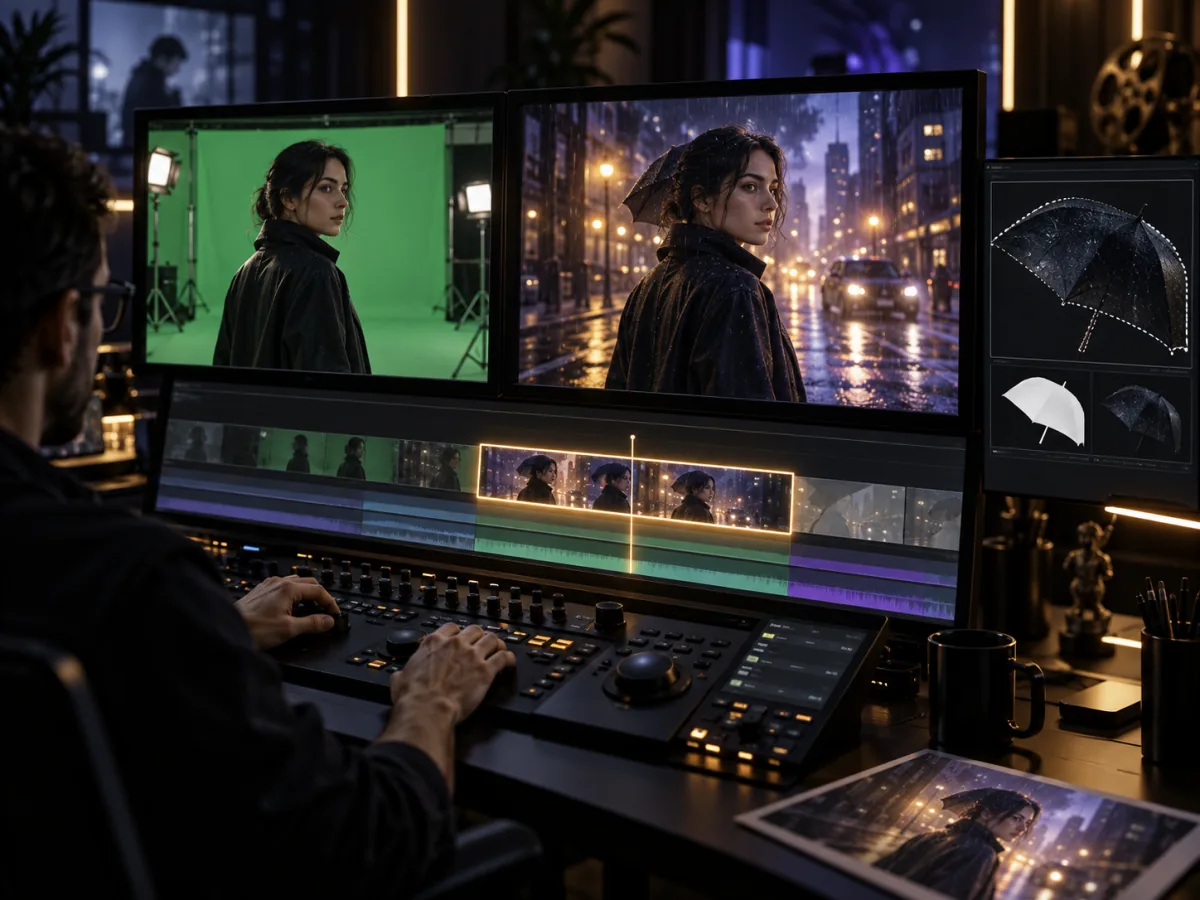
AI Video Local Editing: Fix a Shot Without Starting Over
Learn how AI video local editing uses timestamp instructions, green-screen replacement, camera changes, and reference-based edits to repair a clip without regenerating everything.
A recurring point in Reddit discussions is that 30-second generation attracts attention, but editing control is what turns AI video from a slot machine into a production tool.
In an older workflow, one incorrect detail—a product with the wrong color, a face that changes at second 12, or an unwanted object in the background—often forced the creator to regenerate the entire clip.
The new version might fix the original mistake while introducing several new ones.
AI video local editing changes that logic. First create a version that works overall, then modify only the time range or region that needs attention.
Move from generate-and-hope to generate, review, and repair
A more dependable workflow has four stages:
- Generate the base version
- Review it against the timeline
- Edit the incorrect time or region
- Export the approved result
During review, inspect five areas separately:
- Character identity
- Product geometry
- Physical motion
- Camera continuity
- Audio and action synchronization
If only seconds 18–21 are wrong in a 30-second clip, the ideal solution is to repair that range instead of discarding the other 27 seconds.
Timestamp editing: tell the model where to make the change
Timestamp instructions are useful when a problem occurs at a specific moment.
Keep 0–12 seconds unchanged.

12–16 seconds:
Change the red cup on the desk to a matte black cup.
Keep the character action, camera movement, lighting, and background unchanged.

16–30 seconds:
Continue the original video without adding new objects.
This instruction does three important things:
- Defines when the edit happens
- Defines the object to change
- Defines everything that must remain unchanged
“Make the cup black” is not specific enough. The model also needs to know when the cup appears and whether the surrounding scene should change.
Green-screen editing: preserve the performance, replace the world
Green-screen editing is useful when the character performance already works but the environment needs to change.
An actor can perform a running sequence against a green background, then appear in a rainy city, a desert storm, a science-fiction ship, or a stadium.
A convincing result requires more than replacing the background. Clothing movement, hair, foot rhythm, and light on the subject should respond to the new environment.
That makes a successful performance reusable. The creator does not need to regenerate the character every time the location changes.
Camera editing: keep the content, choose a better viewpoint
Sometimes the character and action are correct, but the shot lacks impact. Camera-perspective editing can explore changes such as:
- Eye-level to low-angle framing
- Locked camera to an orbiting move
- Wide shot to a character close-up
- Faster or slower dolly movement
- A different viewing direction
This is valuable for advertising and previsualization because a team can approve the performance before exploring alternative coverage.
Clay-render references solve staging before generation
Clay-render control belongs closer to previsualization than post-generation editing, but it addresses the same need for predictable results.
A creator can block a scene in Blender, Maya, or another 3D tool, defining character positions, movement paths, and the camera trajectory with simple geometry. The model then adds materials, lighting, motion, and the final visual treatment.
This approach is especially useful for:
- Multi-character blocking
- Architectural visualization
- Automotive advertising
- Product assembly sequences
- Complex orbiting camera moves
The blockout determines whether the space is correct; the model determines how the finished world looks.
When to edit locally and when to regenerate
Use AI video local editing when:
- Only a few seconds contain an error
- Product color or one structural detail is wrong
- The background needs to change
- The camera angle needs adjustment
- The overall character performance is already good
Regenerate when:
- The story logic is wrong from the beginning
- The main character identity is wrong throughout
- The action contradicts the prompt
- The overall lighting and style are off target
- Most shots contain serious problems
Local editing is not a universal rescue tool. Repairing a fundamentally unusable generation can take longer than starting from a clearer brief.
A complete professional editing loop
Begin with the AI video reference asset guide to prepare character, environment, and motion inputs. Generate the base version, then record the exact time of every issue during review.
After each repair, inspect the seconds immediately before and after the edited range. Confirm that the change did not break motion or audio continuity before exporting the final version.
Frequently asked questions
Is AI video local editing the same as a traditional video editor?
No. It is better at regenerating selected content or environments. Traditional editors still provide more deterministic frame, layer, and timeline control.
Can a local edit affect other parts of the frame?
Yes. State which subjects, actions, lighting, camera movement, and background must remain unchanged, then inspect the boundary frames around the edit.
What footage works best for green-screen editing?
Clean subject edges, even lighting, limited motion blur, and clothing that does not match the screen color make the source easier to process.
Final takeaway
The most important benefit of AI video local editing is preserving what already works.
When the performance, pacing, and overall composition are successful, a small mistake should not send the entire clip back into the generation lottery. Timestamp edits, green-screen replacement, camera changes, and reference-based editing turn generation into an iterative creative process.
Start with the video editing or extension workflow on the generator page.
Source: ByteDance Seed technical blog
Categories
More Posts

Multimodal Masterclass: Universal Reference Guide
Deep dive into using the Universal Reference system with up to 12 files to precisely control camera work and character motion.

Master Seedance 2.0 Character Consistency: Top Hacks from Reddit & X
Struggling with identity drift in Seedance 2.0? Discover proven techniques to achieve perfect character consistency across scenes—straight from the community.

Seedance 2.0 Is Finally Available: Best Seedance 2.0 Prompts and How to Start Creating Today
Try Seedance 2.0 online! Discover the best Seedance 2.0 prompts and workflows to create cinematic AI videos at Seedance2.online now.